¶ Fixi - Settings - Users
In Fixi there are four types of users:
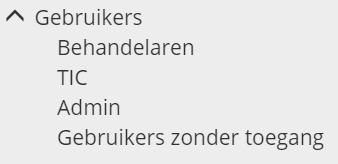
¶ Handlers of Reports
Handlers can only see reports assigned to the team they are a member of. It is not possible to see all reports from the municipality unless the ‘all reports’ right is turned on for the user.
Click here for the handler’s manual.
¶ TIC
TIC users see all reports from the municipality. TIC users are usually Customer Contact Center employees or work distributors who must be able to see all reports from the municipality. Either in order to inform residents or to correctly distribute the reports. A TIC user may also need to be part of a team. This can only be done by first changing their role to “handler”, then adding them to a team and then changing their role back to TIC (read more here).
Click here for the manual of the Customer Contact Center employee or the work divider.
¶ Admin
Admin users see the same Fixi website as a TIC user: they can see all reports from the municipality. An admin user also has the option to view the Dashboard and adjust the settings.
¶ Users without access
All users who do not have access to Fixi. If someone has to be removed from Fixi, this can only be done after the person has been given the role ‘No access’.
¶ Overview of users
As soon as you click on ‘Handlers’,’ TIC ', ‘Admin’ or ‘Users without access’, you will get an overview of the users:
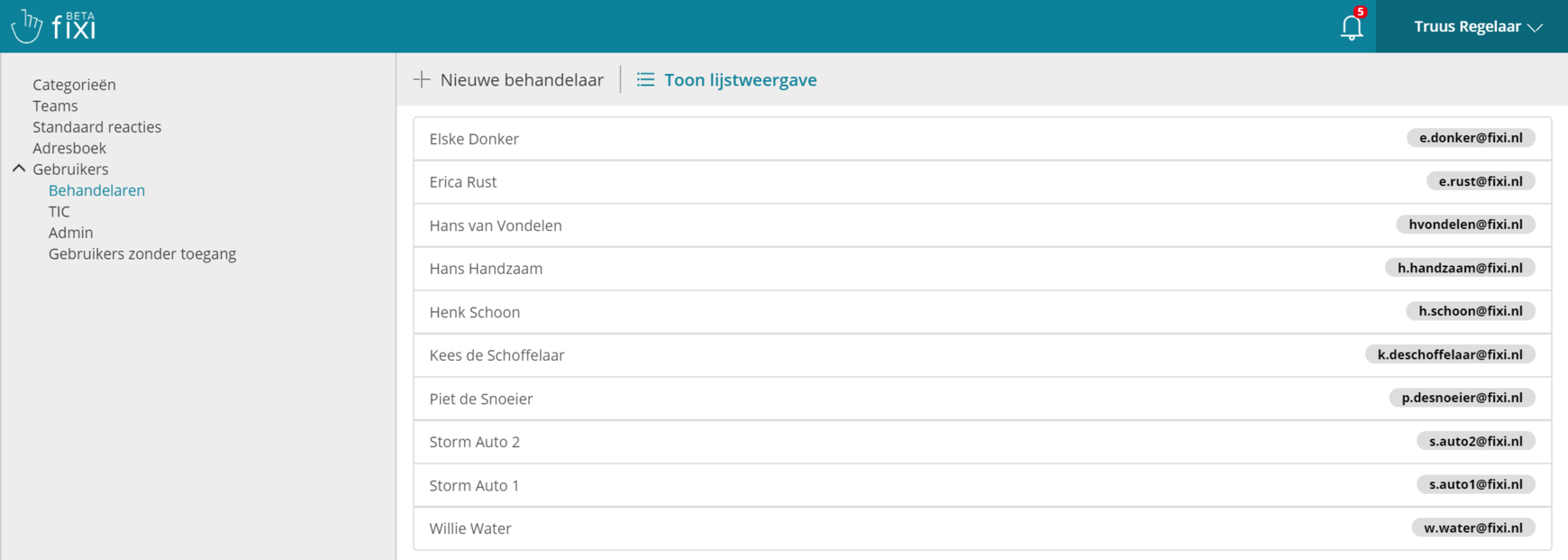
Here you will find the name of the user with their e-mail address on the right. It is currently not possible to make an export of this overview.
¶ Create new handler
To create a new handler, click on ‘New handler’. You will get the following input fields:
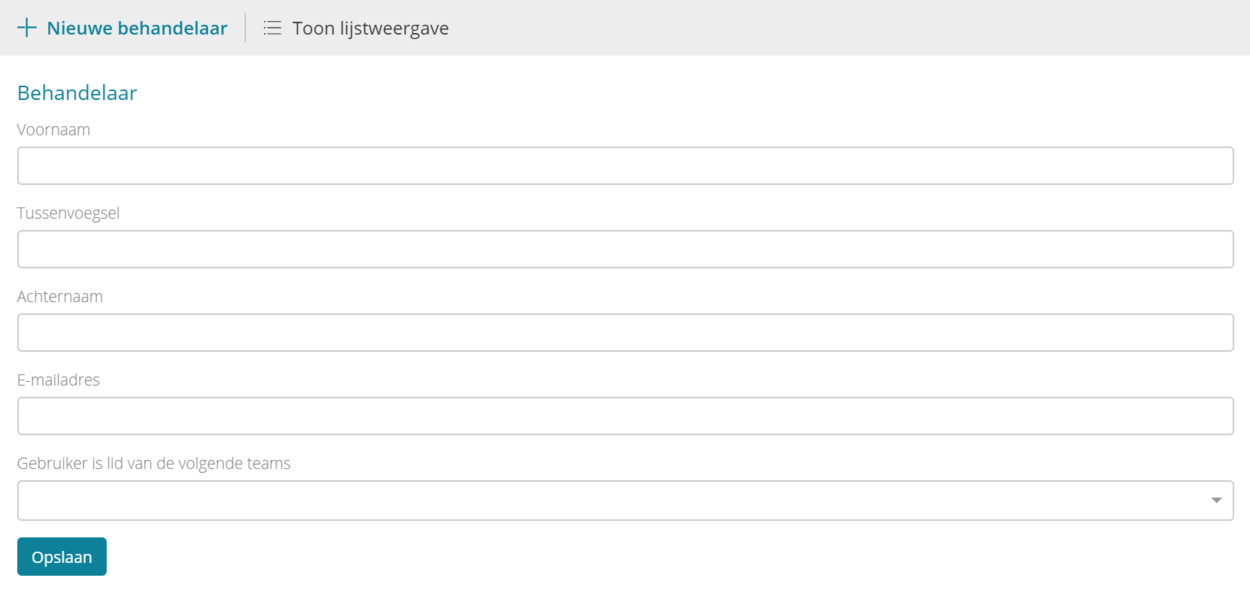
¶ First Name
Here you enter the first name of the handler.
¶ prefix
Here you enter the surname prefix of the handler (if applicable).
¶ Last name
Here you enter the surname of the handler.
¶ E-mail address
Here you enter the email address of the handler.
¶ User is a member of the following teams
Here you can enter the teams that the handler should be a member of. A handler can be a part of multiple teams. As soon as you click on this field, a dropdown appears with all available teams:
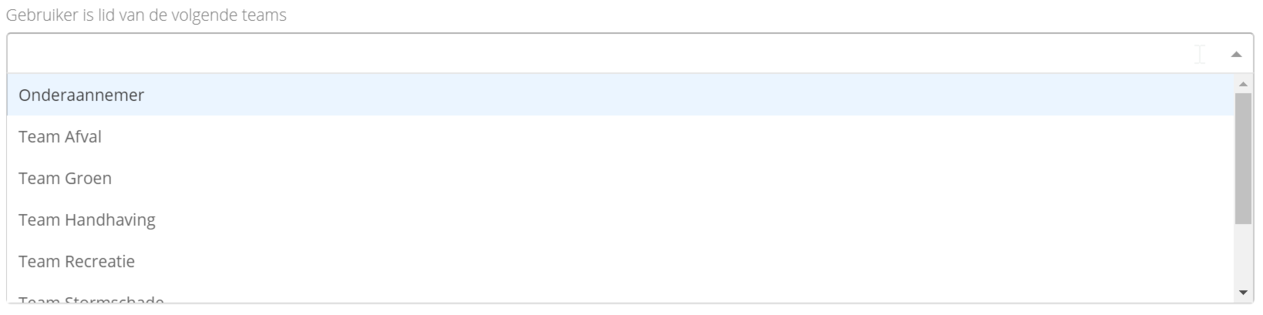
It is also possible to type the name of a team. The dropdown is then automatically adjusted, allowing you to add a team more quickly:

Then click on ‘Save’ and the user will be sent an email to activate their account.
The moment the handler clicks on the link, they must create a password and then the account is created.
¶ Create new TIC user
To create a new TIC user, click on ‘New TIC’. You will get the following input fields:
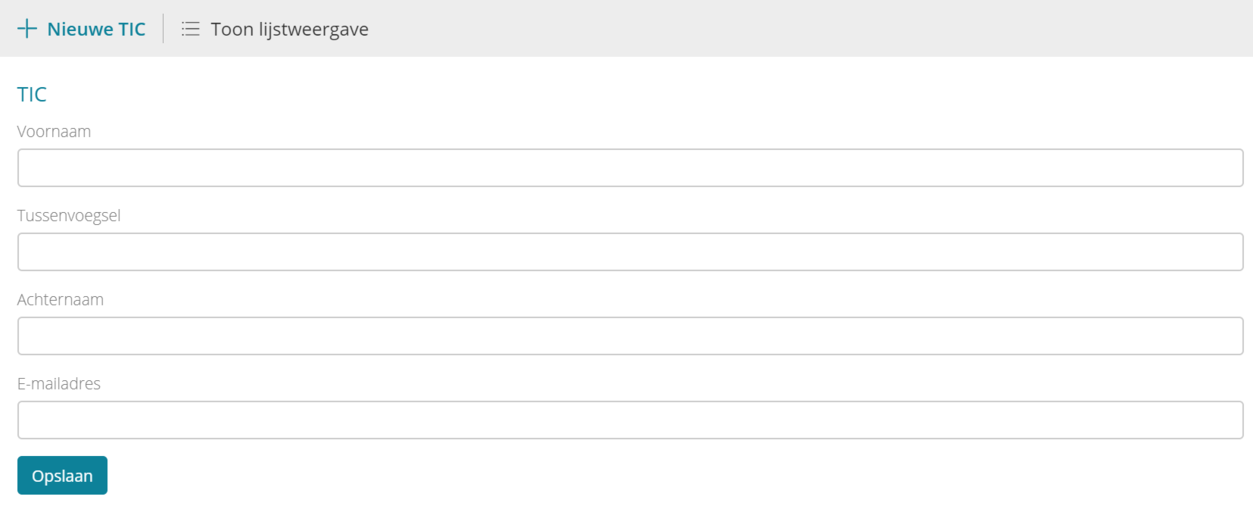
¶ First Name
Here you enter the first name of the TIC user.
¶ insertion
Here you enter the surname prefix of the TIC user (if applicable).
¶ Last name
Here you enter the surname of the TIC user.
¶ E-mail address
Here you enter the e-mail address of the TIC user.
Then click on ‘Save’ and the user will be sent an email to activate their account.
The moment the TIC user clicks on the link, they must create a password and then the account is created.
¶ TIC user who must also be a member of a team
If a TIC user needs to see all reports from the municipality, but still needs to be a member of a team, their role must first be changed to ‘Handler’. You will see the user’s role once the user has been saved:
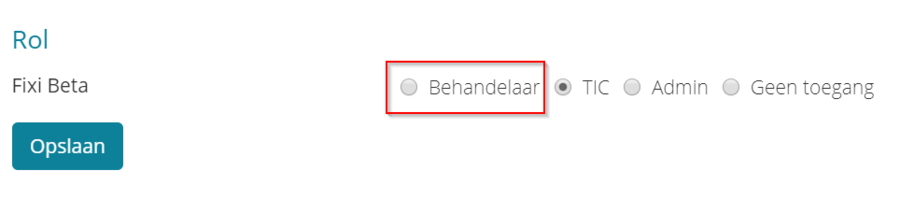
After saving the user, you will find them under ‘handlers’. There you can add them to a team, save the user and then change their role back to TIC.
¶ Create new admin user
To create a new admin user, click on ‘New admin’. You will get the following input fields:
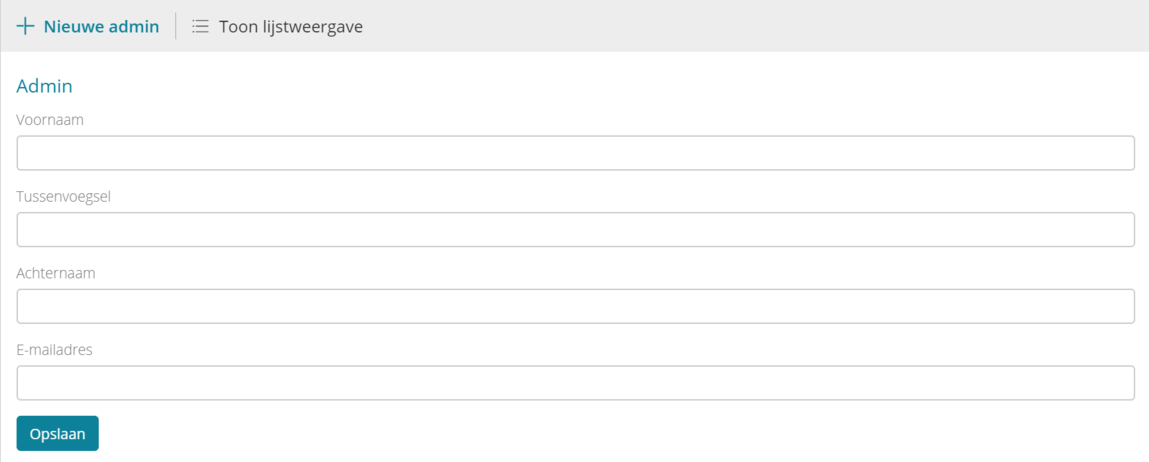
¶ First Name
Here you enter the first name of the admin user.
¶ insertion
Here you enter the surname prefix of the admin user.
¶ Last name
Here you enter the surname of the admin user.
¶ E-mail address
Here you enter the email address of the admin user.
Then click on ‘Save’ and the user will receive an email to activate their account.
The moment the admin user clicks on the link, they must create a password and then the account is created.
¶ Admin user who must also be a member of a team
If an admin user has to see all reports from the municipality, but still has to be a member of a team, the role must first be changed to ‘handler’. You will see the user’s role once the user has been saved:
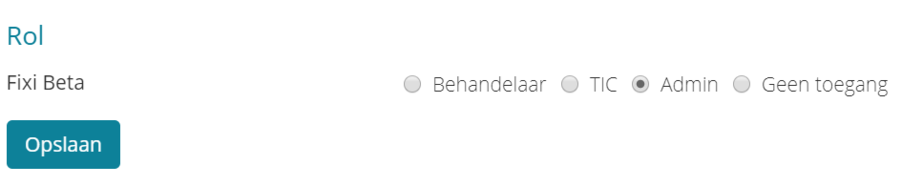
After saving the user, you will find it in the ‘handler’. There you can add the team, save the user and then return the role to admin.