¶ Fixi - Settings - Subcategories
Subcategories fall under a main category. Subcategories are only visible to municipal employees. Residents only report by main category.
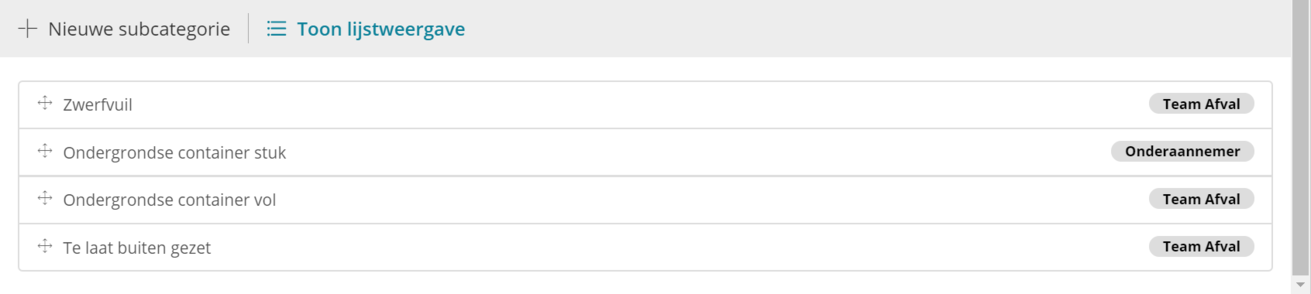
As soon as you click on a main category in the Fixi settings and scroll down, you will see the subcategories. Below is an overview of the subcategories in the ‘[Fixi Demo] Waste’ category of the fictitious municipality of Meervoort:
¶ Adjust new subcategory / subcategory
Via the button ‘New subcategory’ you create a new subcategory and you can set the following:
¶ Name of the subcategory
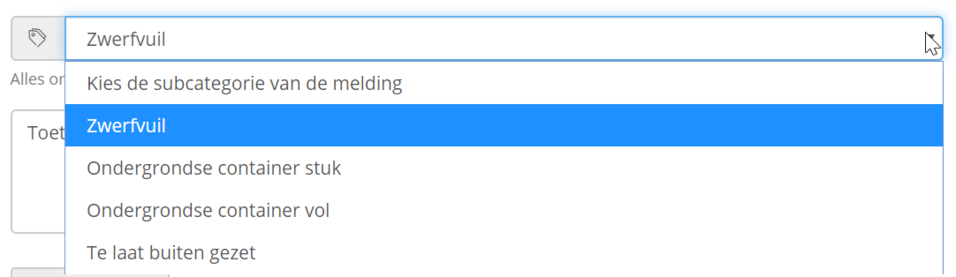
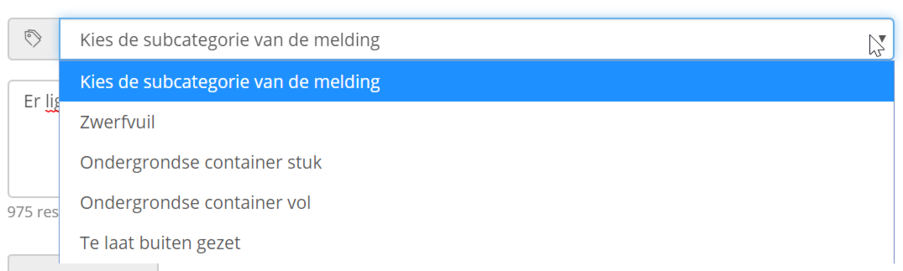
Here you enter the name of the subcategory. In the Fixi form, employees of the municipality will see the field ‘Choose the subcategory of the report’ under the field ‘Choose the type of report’. When clicking on the dropdown you will see the names of the subcategories:
¶ Service standard on handling time
A municipality can apply a standard maximum handling time for a report. This time standard can also be set per subcategory. Here you enter the number of working days in which reports (in the subcategory) must be handled.
.png)
In this example, the municipality has three working days (weekends are not included) to process the report. If the report is received on Friday January 1 at 11:00 am, it must be handled by Wednesday January 6 at 11:00 am.
¶ Service standard for first response to resident
A municipality can apply a standard maximum time for an initial response to the resident. This standard can also be set per sub-category. Enter the number of working days in which a response to the resident must be made. This only applies to a public response or a response to the reporter. A response to a colleague (internal response) does not count towards meeting the service standard.
.png)
In this example, the municipality has one working day (weekends are not included) to respond to the resident. If the report is received on Friday 1 January at 11:00 am, the response (public or to the reporter) must be made before Monday 4 January at 11:00 am.
¶ Description of the subcategory
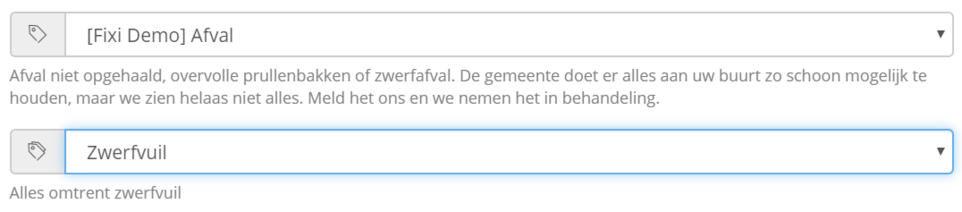
A text can be put in the description of the subcategory, so that employees know what can be reported under this subcategory:

This will look as follows for the employee of the municipality:
It is also possible to use hyperlinks to a website in the description, so that an employee of the municipality can go to another website to arrange something for the reporter.
¶ Standard team
You can also indicate per subcategory which team should be automatically filled in in the workflow of the report. In the field below you can select the teams that have been created:
.png)
Once a Fixi report has the subcategory Litter, Team Waste is automatically selected in the dropdown. Handlers from that team can then pick up the report from ‘Team reports’.
To learn how to create teams, click here.
Once you click on ‘Save’, the subcategory is saved.
¶ Order subcategories
The order in the settings is displayed in the ‘Select the subcategory of the report’ field. To adjust it, you can simply drag and drop:
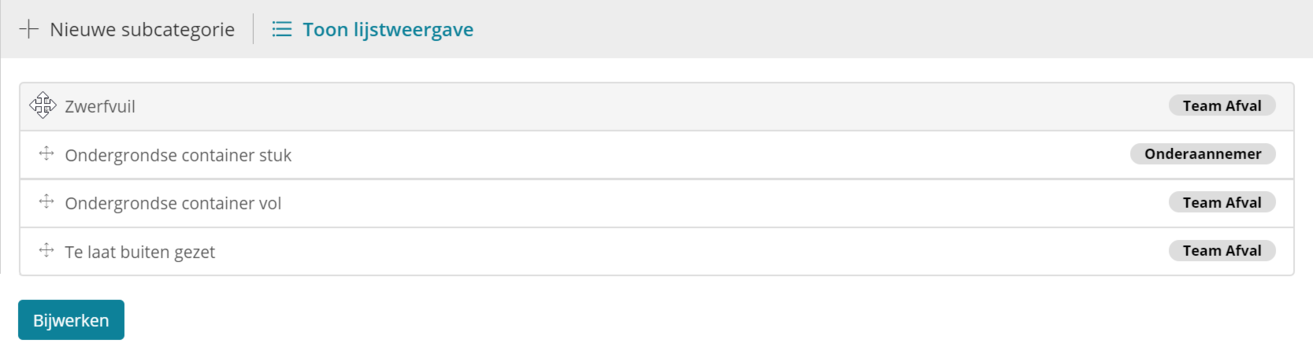
Once you have dragged the order into the correct order, click on ‘Update’ and the order is adjusted. The municipal employee will henceforth see this sequence in the form: