¶ Fixi - Settings - Categories
Here is an overview of the categories of the fictitious municipality of Meervoort:
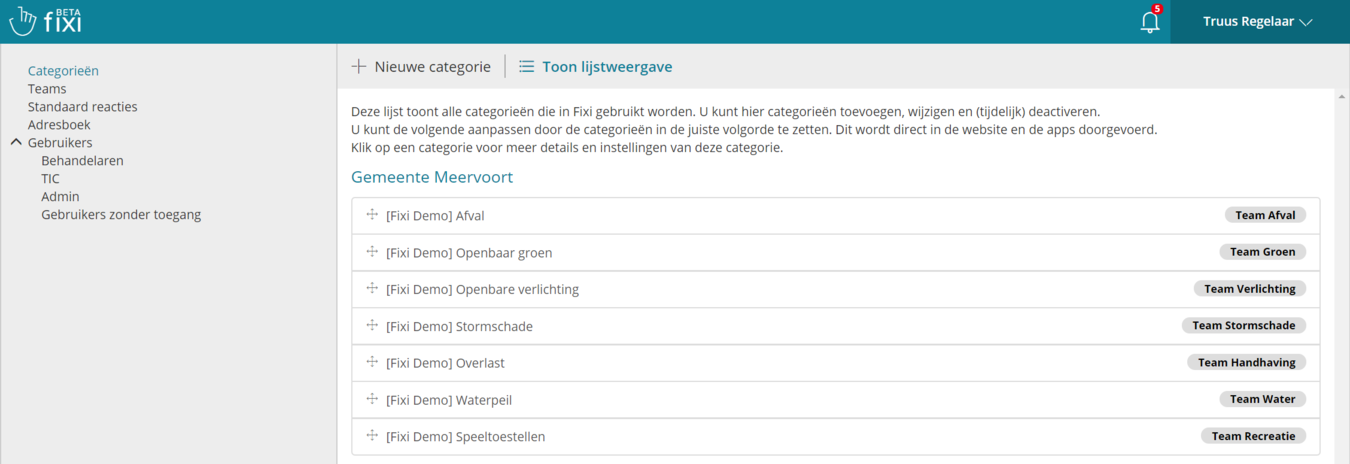
¶ Adjust new category / category
Via the button ‘New category’ you create a new category and you can set the following:
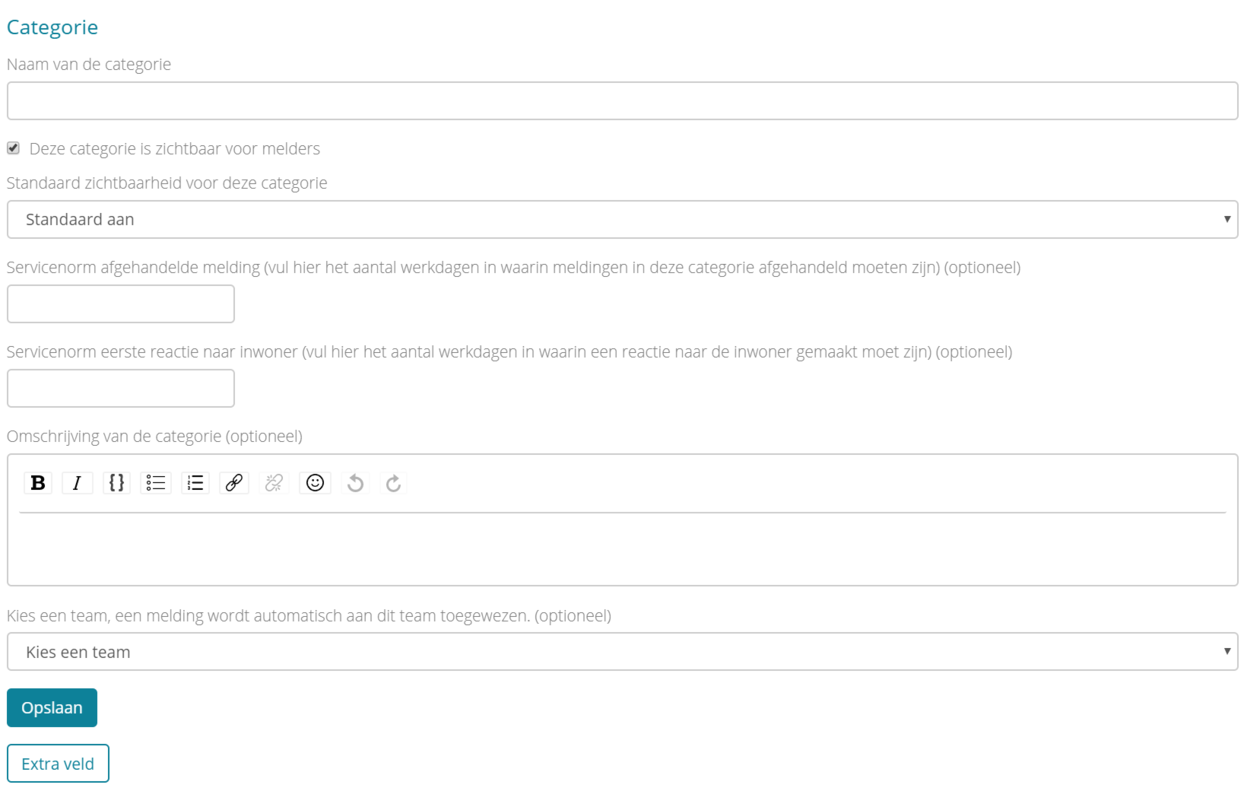
¶ Name of the category
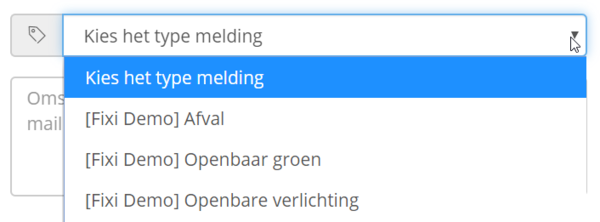
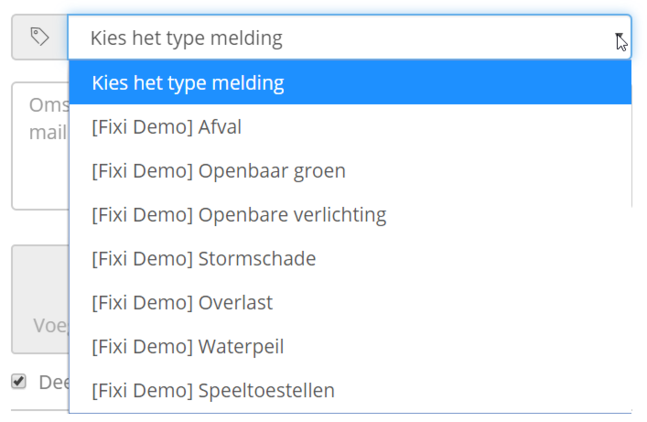
Here you enter the name of the category. In the Fixi form, residents see these entered names in the ‘Choose the type of report’ field:
¶ Is the category visible to reporting persons (residents)
Here you can indicate whether the category should be visible as an option for the resident.

As soon as you uncheck this box, the category will become inactive and it will be displayed in yellow in the list view of categories:

Categories that can be inactive are:
- Storm damage (this category is only visible during/after storms)
- Oak processionary caterpillar (this category is only visible during the summer)
- Ice control (this category is only visible during the winter)
- Fireworks damage (this category is only visible during/after New Years)
¶ Default visibility for this category
For each category you can set whether the checkbox ‘Share the above data on the public map’ should be on, off by default, always on or always off.
The checkbox below comes from the report form and can be adjusted by the resident:

These are the options that can be selected:
- Default on: tick box ‘Share above data on public map’ is on, resident can turn it off.
- Off by default: the tick ‘Share the above data on the public map’ is off, resident can turn it on.
- Always off: When selecting the category, it says: “Your report will not be shown on the public map and is only visible to the organization.”
- Always on: Notifications are always shared on the public map, where the resident cannot set anything (This option is never actually used)
You may want to switch the ‘Nuisance / Enforcement’ category to always off or set it to off by default because sensitive information is often used here by a resident (for instance, in the case of neighborly quarrels).
¶ Service standard on handling time
A municipality can apply a standard maximum handling time for a report. This time standard can be set per category. Here you enter the number of working days by which reports (in the category) must be handled.

In this example, the municipality has three working days (weekends are not included) to process the report. If the report is received on Friday January 1 at 11:00 am, it must be handled by Wednesday January 6 at 11:00 am.
¶ Service standard for first response to resident
A municipality can also apply a standard maximum time for an initial response to the resident. This time standard can be set per category. Enter the number of working days in which a response to the resident must be made. This only applies to a public response or a response to the reporter. A response to a colleague (internal response) does not count towards meeting the service standard.

In this example, the municipality has one working day (weekends are not included) to respond to the resident. If the report is received on Friday 1 January at 11:00 am, the response (public or to the reporter) must be made before Monday 4 January at 11:00 am.
¶ Description of the category
A text can be put in the description of the category, so that residents know what can be reported under this category:

The resident will see the following:
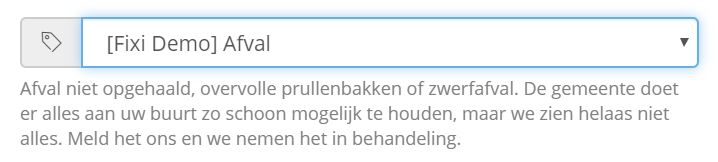
It is also possible to use hyperlinks to a website in the description, so that residents can arrange something themselves on a municipal website (like requesting a new container).
¶ Standard team
You can also indicate per category which team should be automatically filled in, in the workflow of the report. In the field below you can select the teams that have been created:

When a Fixi report has the category Waste, Team Waste is automatically selected in the dropdown. Handlers from that team can then pick up the report from ‘Team notifications’.
To learn how to create teams, click here.
¶ Extra field
For each category it is possible to add an extra field to the form. Here, we will use ‘Public lighting’ as an example.
You can create an extra field via this button:

Then enter the name of the extra field and the description of the extra field. You can also indicate whether this is a mandatory field or not:

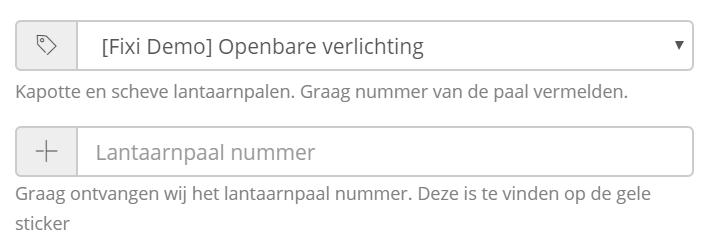
Once this additional field has been saved (by saving the category), the resident will see it as follows when selecting the ‘Public lighting’ category:
¶ Link field
The following supplier integrations for the ‘Public lighting’ category are currently available:
- Nobralux
- Moon
When the municipality has integrated with one of these suppliers, an extra field will appear for each category:

For example, once you have selected the Nobralux integration, you can use it. It is advisable to test the integration first on the Fixi test environment.
¶ Order categories
The order of the categories in settings is displayed in the ‘Select the type of report’ field. You can adjust is as follows:
Single zone
When a customer uses only one zone, it is possible to adjust the order using drag and drop:
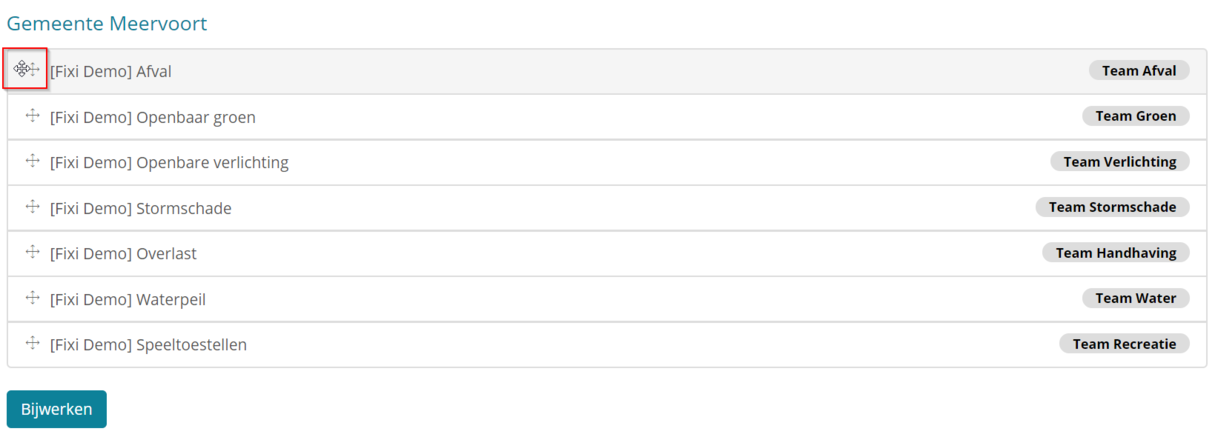
Once you have dragged the options into the correct order, click on ‘Update’ and the order is adjusted. The resident will henceforth see this sequence in the form:
¶ Multiple zones
Reordering works differently for municipalities using multiple zones. When you have multiple zones, an extra field will be added to the category:

Enter a number here. The highest number is placed at the top of the list of categories. An overview of the categories for an organization with multiple zones looks like this:
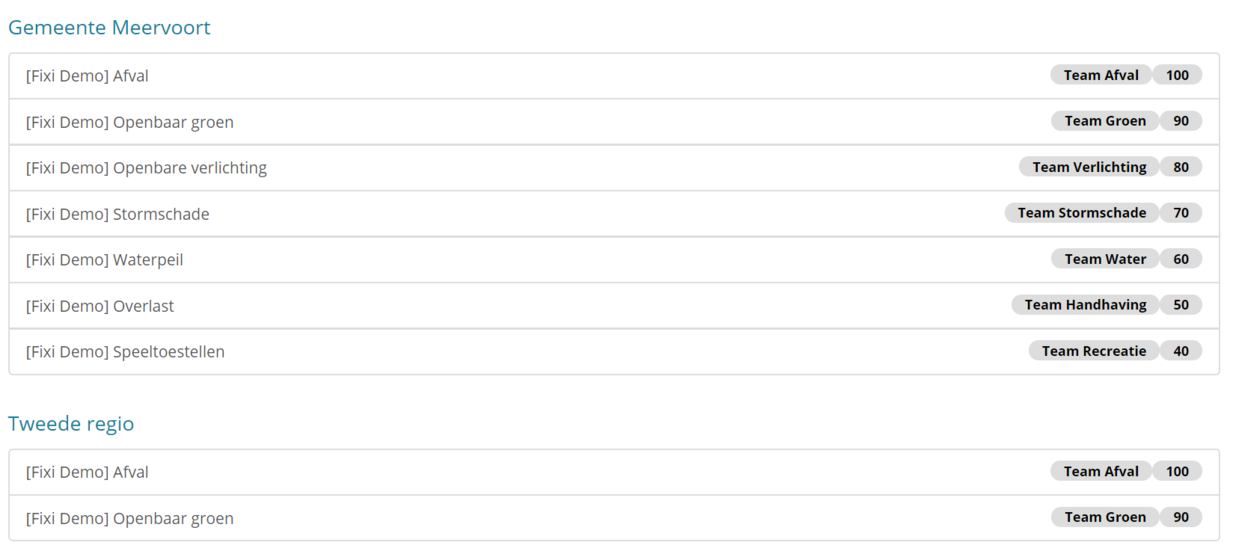
The order numbers are to the right of the default team.