¶ Process Type relation
In this page admin can link processtype and add its relation type.(Related Process,subprocess,Followup process)
¶ Subprocess:
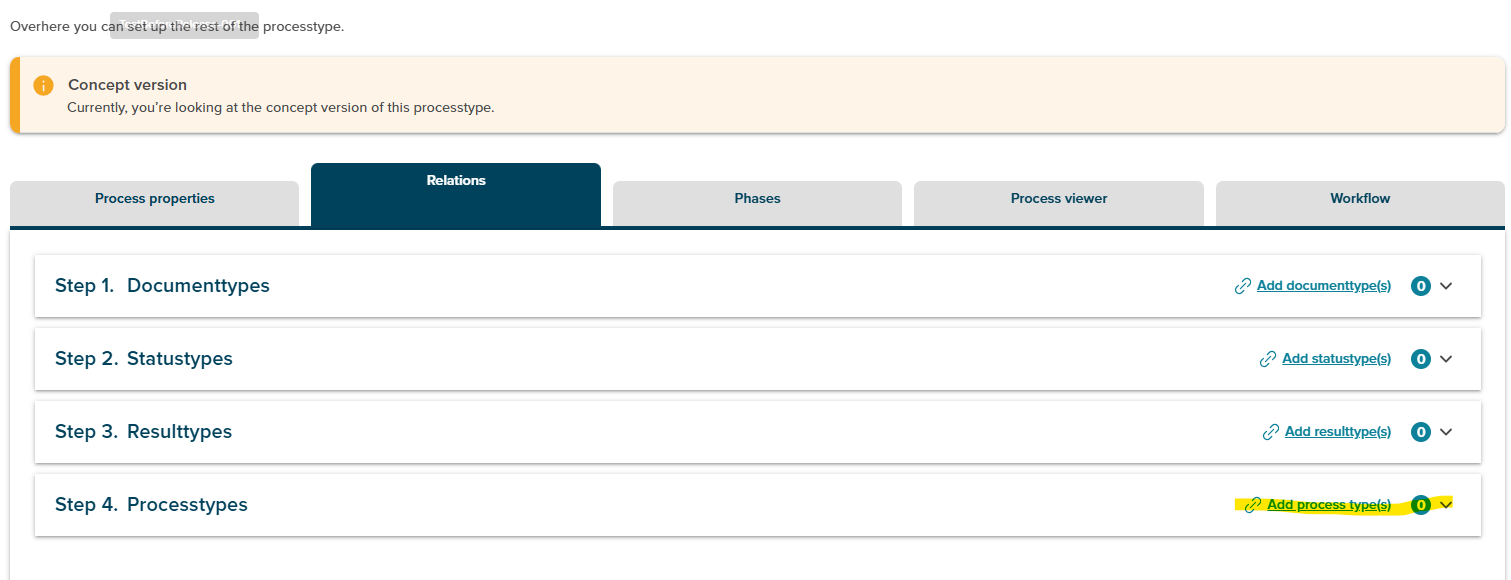
In relation tab ,admin can add processtype with its relation type.
-
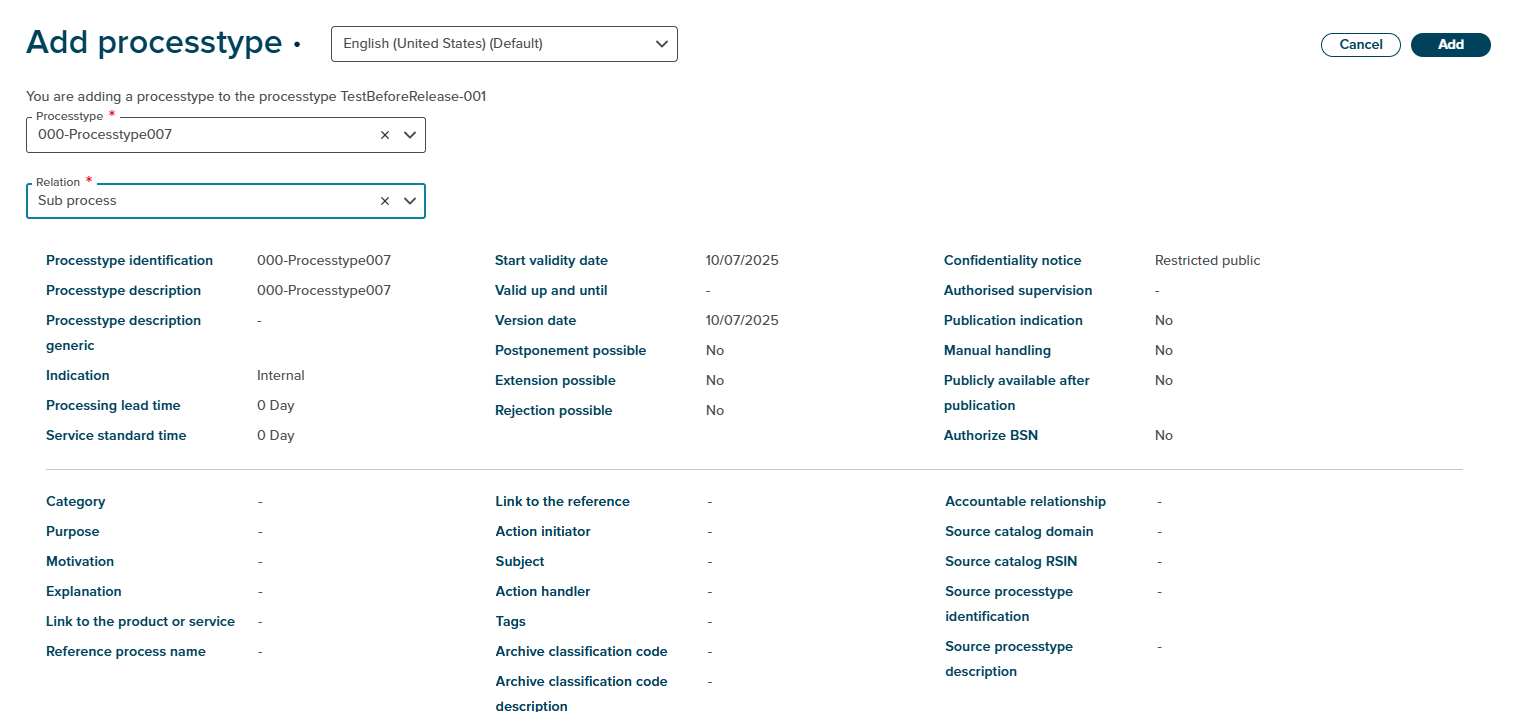
After clicking on add processtype and selecting a processtype to link, user is presented with relation type options.
-
Admin can choose the relation as Subprocess from relation dropdown
-
Once admin confirms relation and adds it by clicking “Add” button ,user is taken back to the Relations tab with a success toast shown.
-
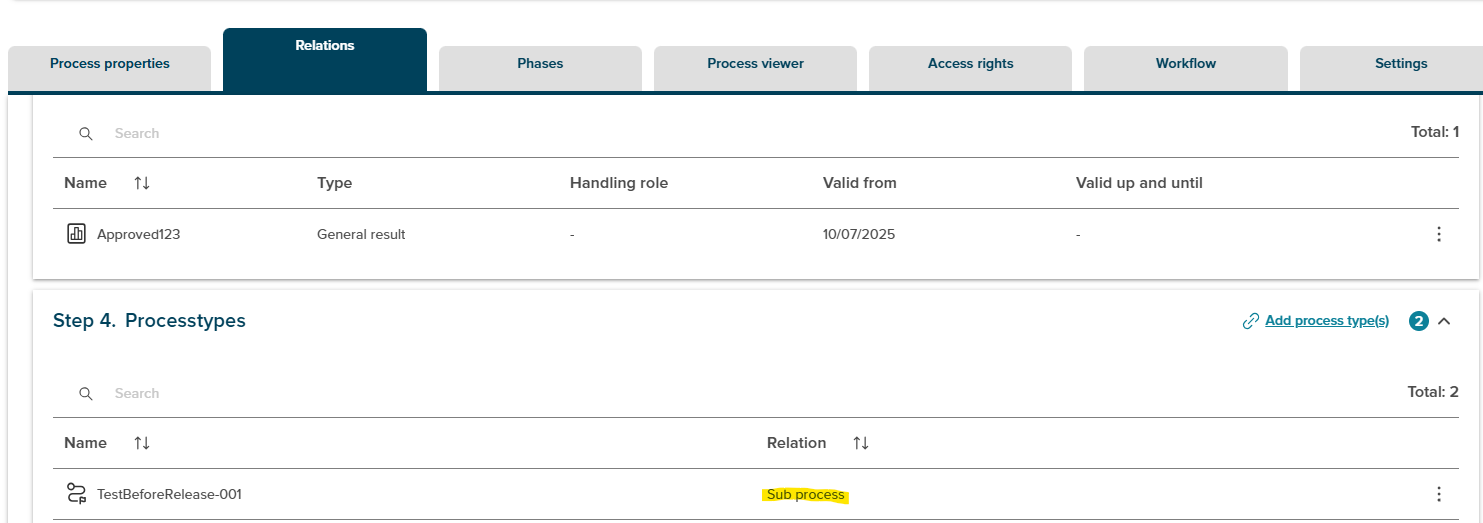
In the detail page of a process, admin expands the “Processes and Subprocesses” row.Admin can see the relation and processtype linked under processtype section.
-
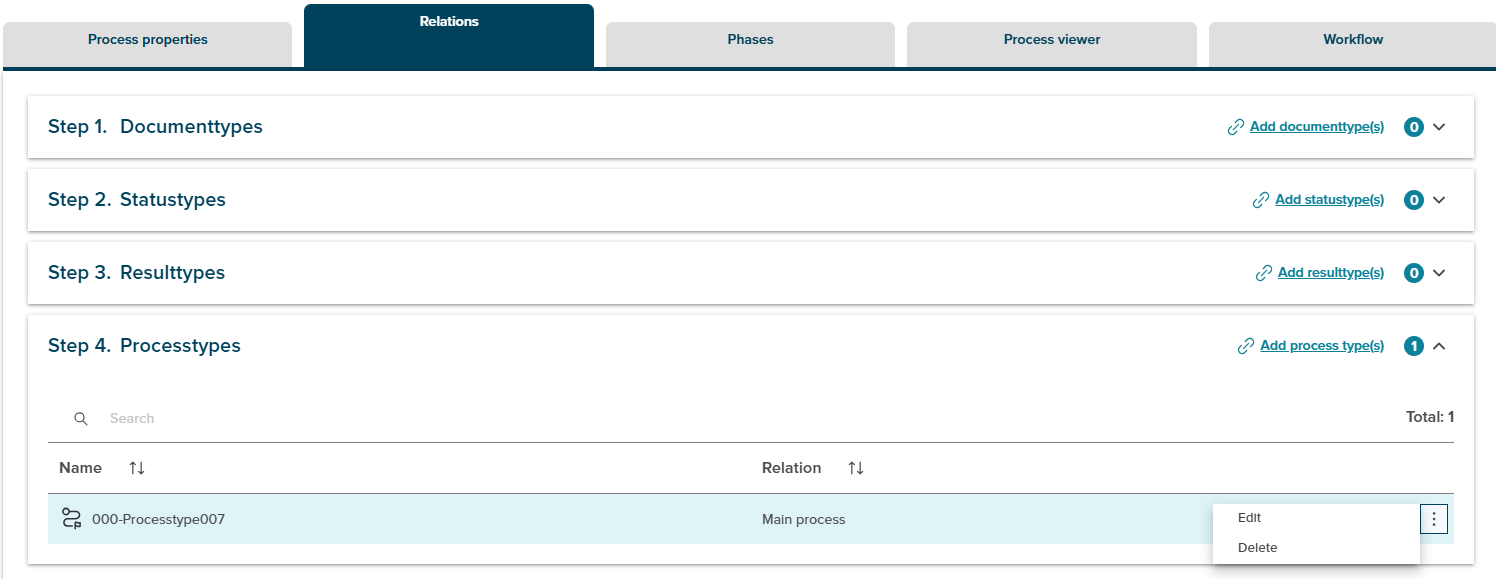
In Relations tab, admin can access kebab menu for each linked processtype.
-
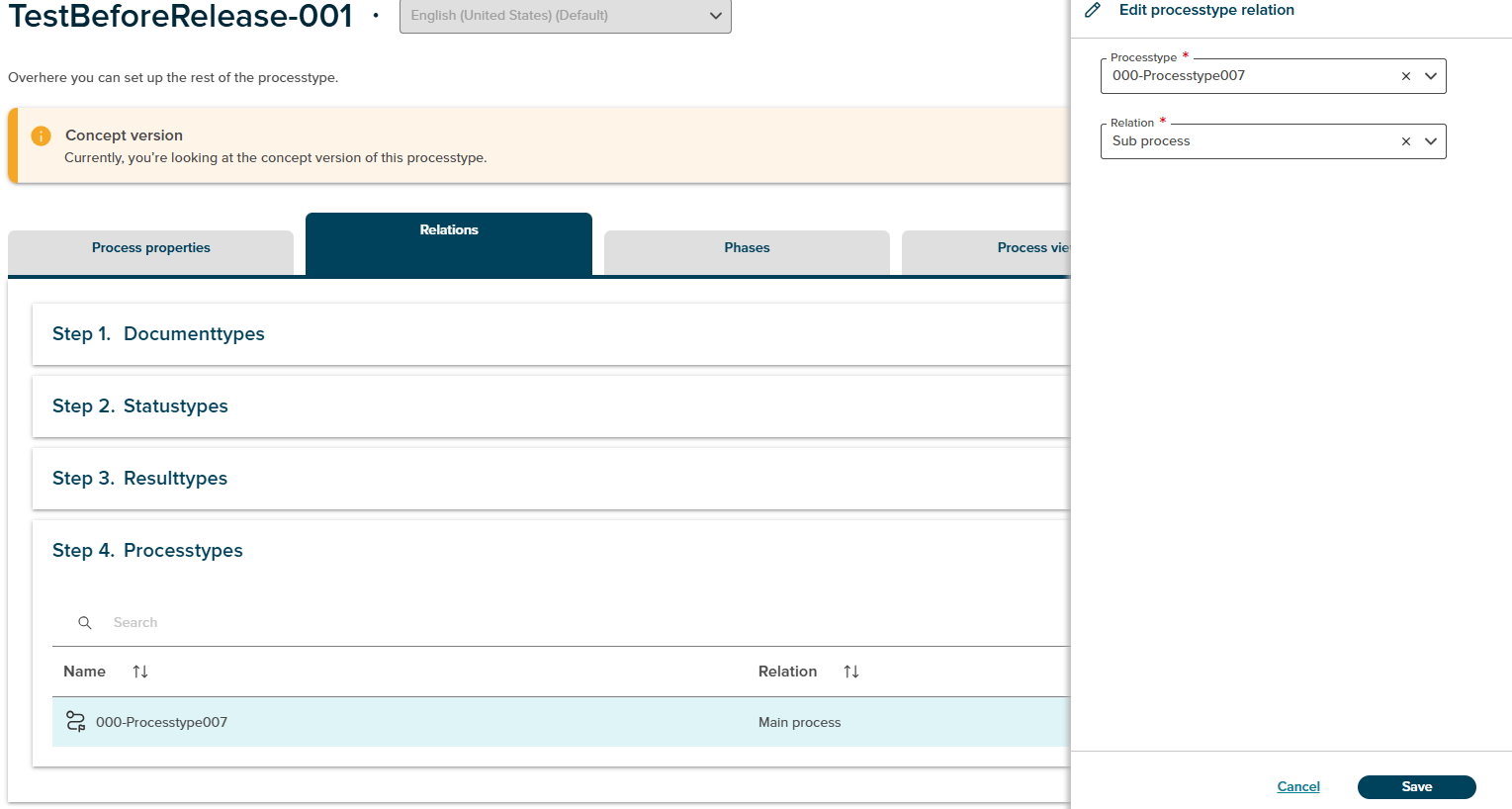
Admin can delete and edit the relation.After clicking Edit, a side panel will open to change relation type and processtype.
-
Side panel allows user to modify the relation type.Success toast is shown after edit and user will redirect to details page after save click.
-
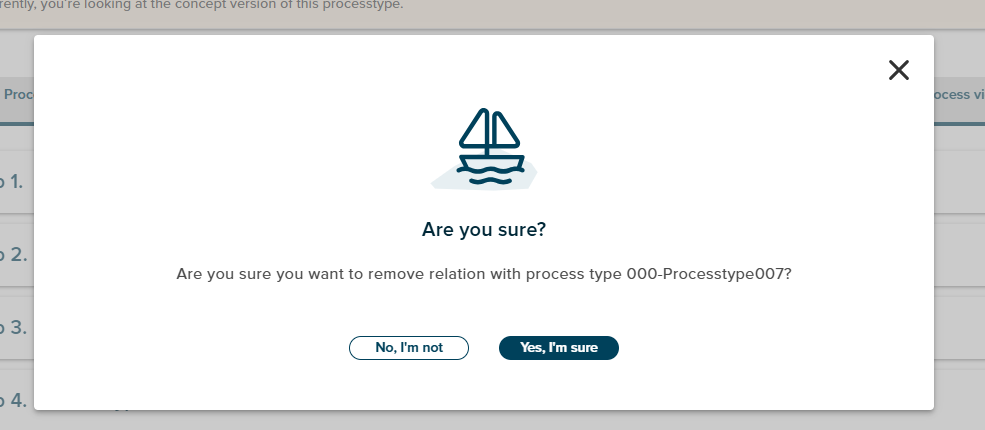
On clicking Delete, a confirmation popup appears.
-
If user confirms, the relation is removed from the list.
-
Success toast is shown after deletion.
¶ Followup process:
In relation tab ,admin can add processtype with its relation type.
-
After clicking on add processtype and selecting a processtype to link, user is presented with relation type options.
-
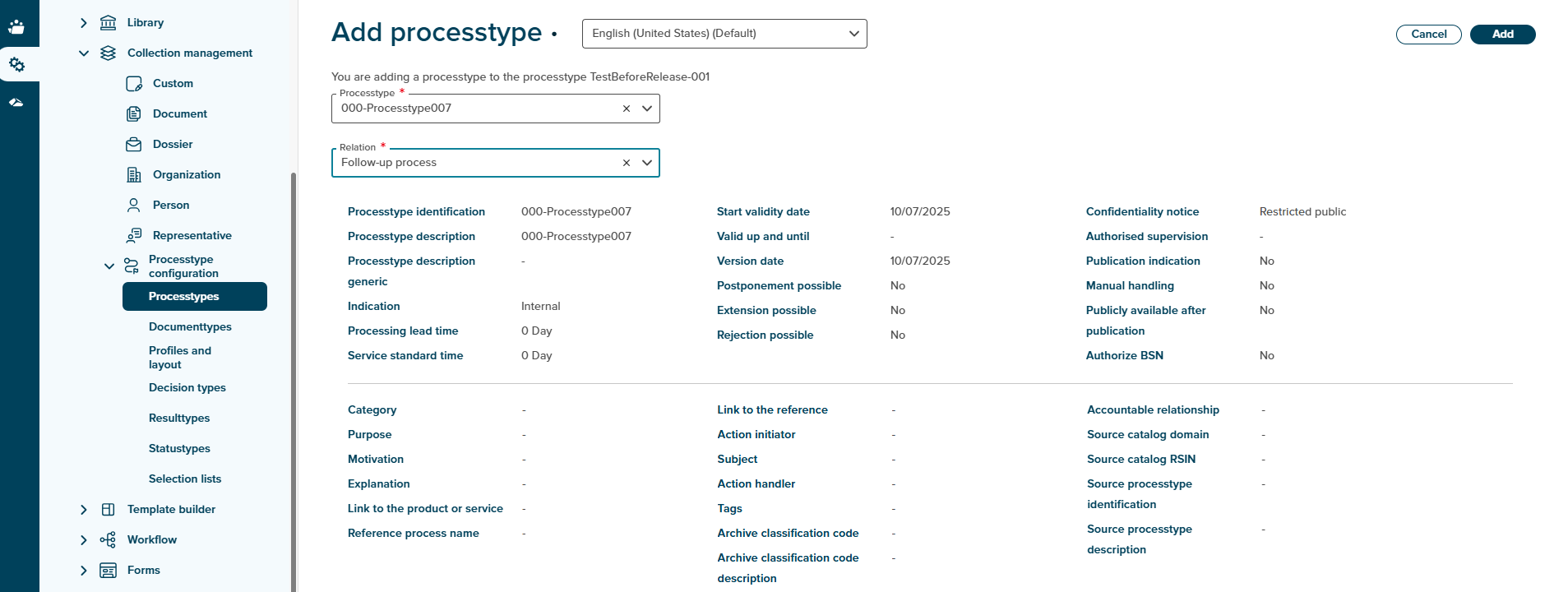
Admin can choose the relation as Followup from relation dropdown
-
Once admin confirms relation and adds it by clicking “Add” button ,user is taken back to the Relations tab with a success toast shown.
-
In the detail page of a process, admin expands the “Processtype” row.Admin can see the relation and processtype linked under processtype section.
-
In Relations tab, admin can access kebab menu for each linked processtype.
-
Admin can delete and edit the relation.After clicking Edit, a side panel will open to change relation type and processtype.
-
Side panel allows user to modify the relation type.Success toast is shown after edit and user will redirect to details page after save click.
-
On clicking Delete, a confirmation popup appears.
-
If user confirms, the relation is removed from the list.
-
Success toast is shown after deletion.
-
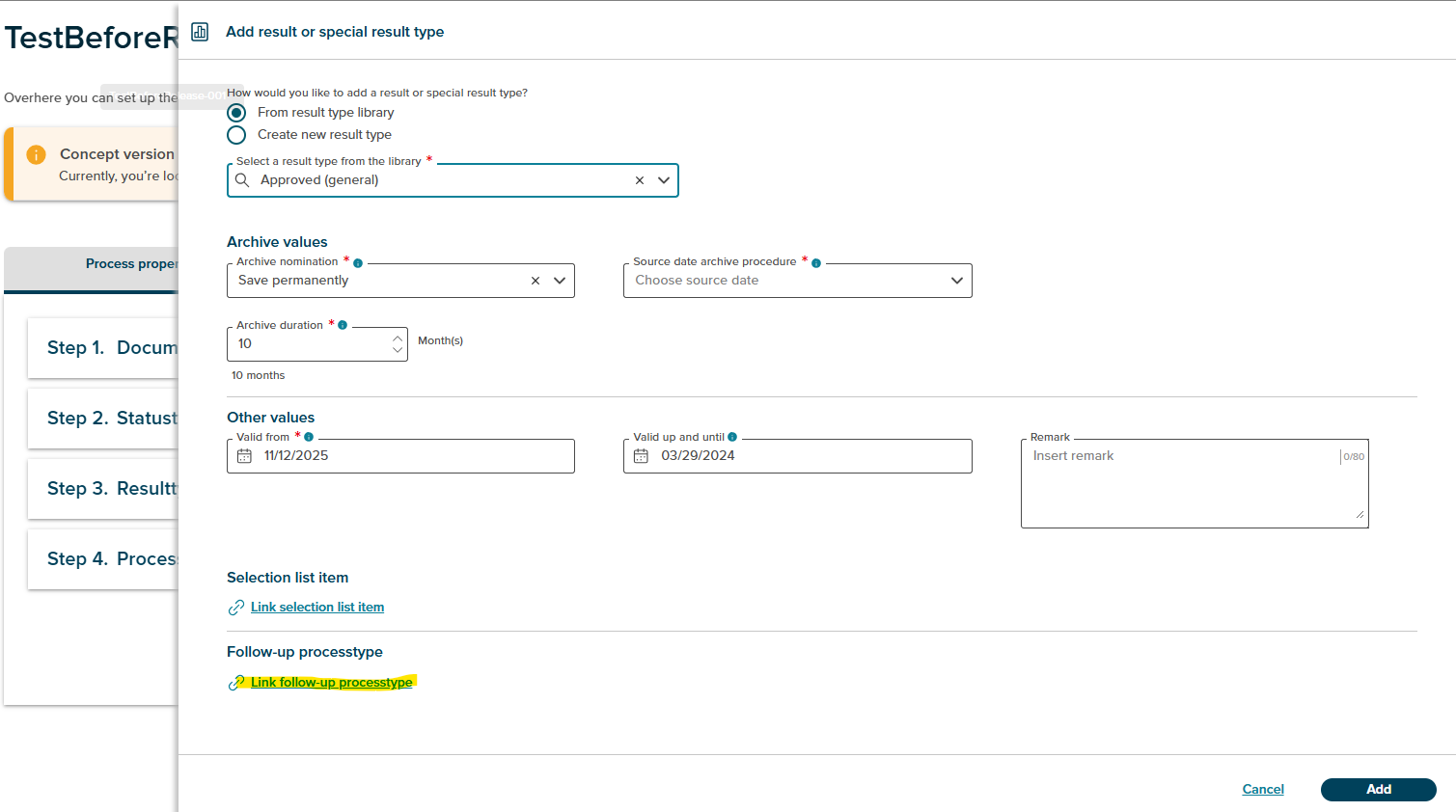
After adding followup processtype,admin can set the start date of followup process creation in resultype:
-
While adding resultype to processtype, admin can see the option to link followup processtype .
-
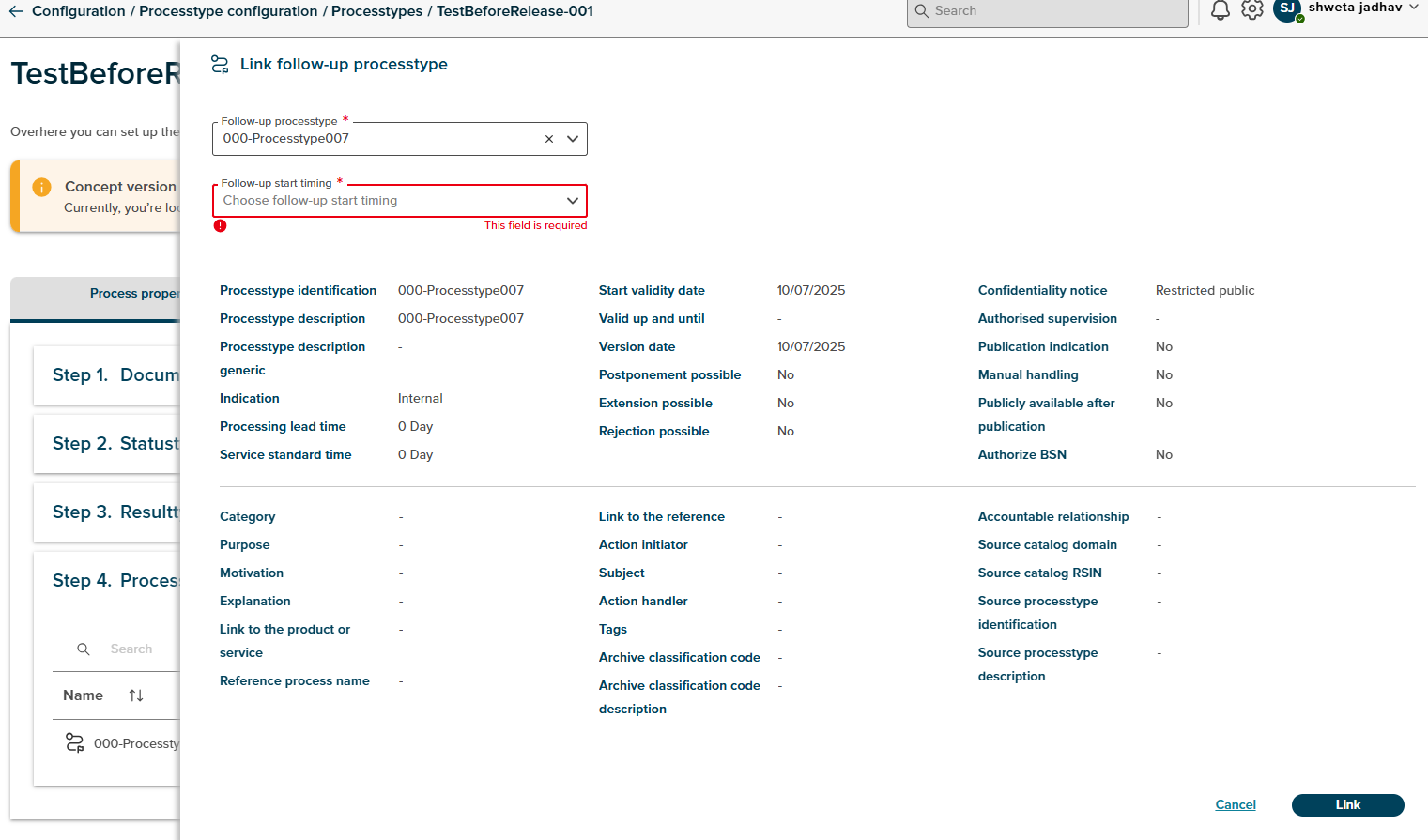
After clicking on “Link Follow-up Process Type” opens a side panel.
-
Admin can see two dropdown option to add processtype and its start timing
-
Only one followup processtype can be linked to resulttype. Below are the options for start timing
Immediately:- Admin links a follow-up process type to a result type
- Admin selects “Immediately” as the start timing
- No further input is required
- Follow-up process is created immediately after the primary process is handled
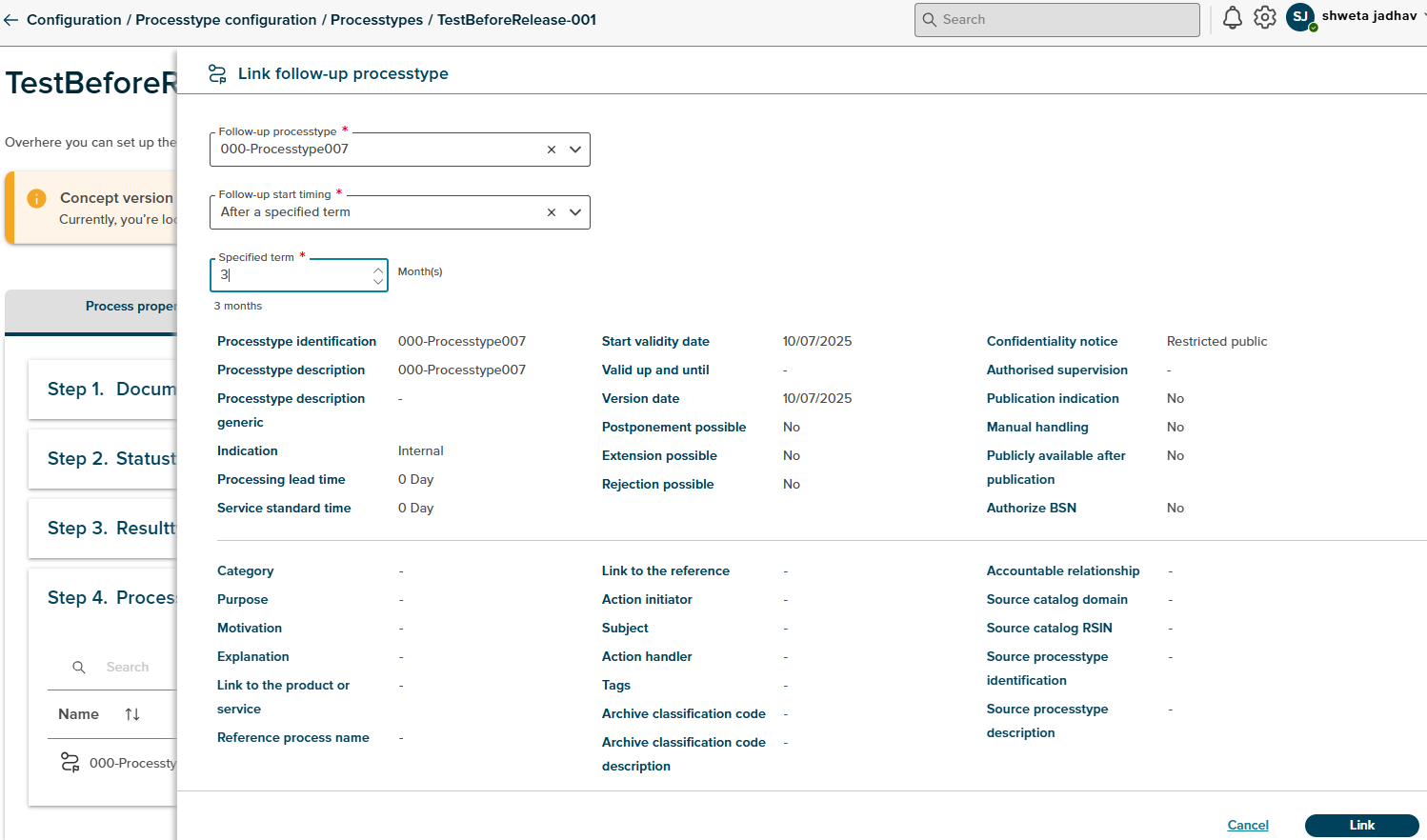
After a specified term:
- Admin selects “After a specified term” as start timing when linking follow-up
- Admin is shown an input field to enter term in months
- Term must be greater than 0
- Follow-up is created after the specified term post-process handling
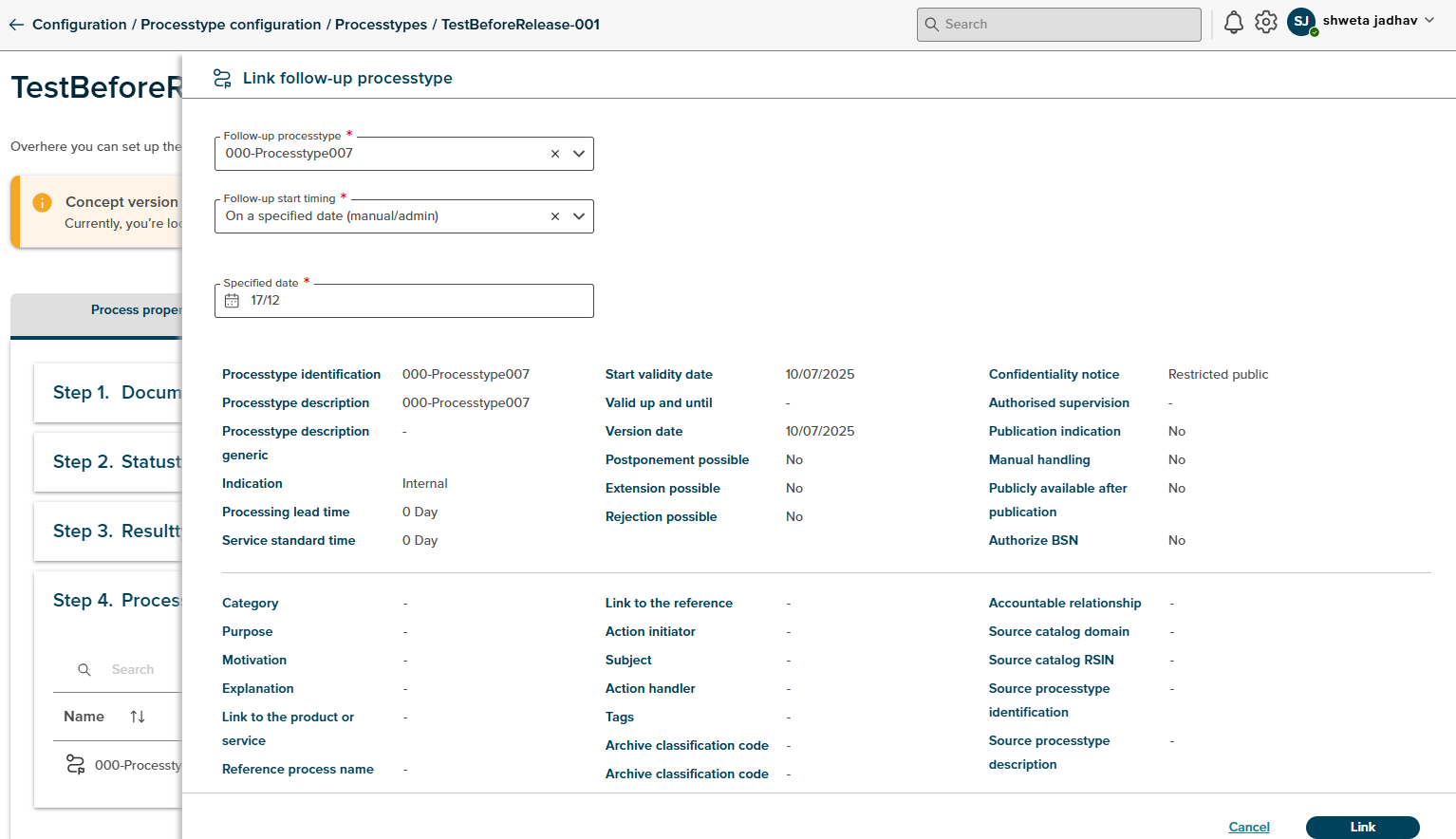
On a specified date (manual/admin):
- Admin selects “Manual/Admin” option when linking follow-up process type
- Admin inputs a specific day and month (no year)
- Follow-up process is created on selected date in the same calendar year
¶ Related Process:
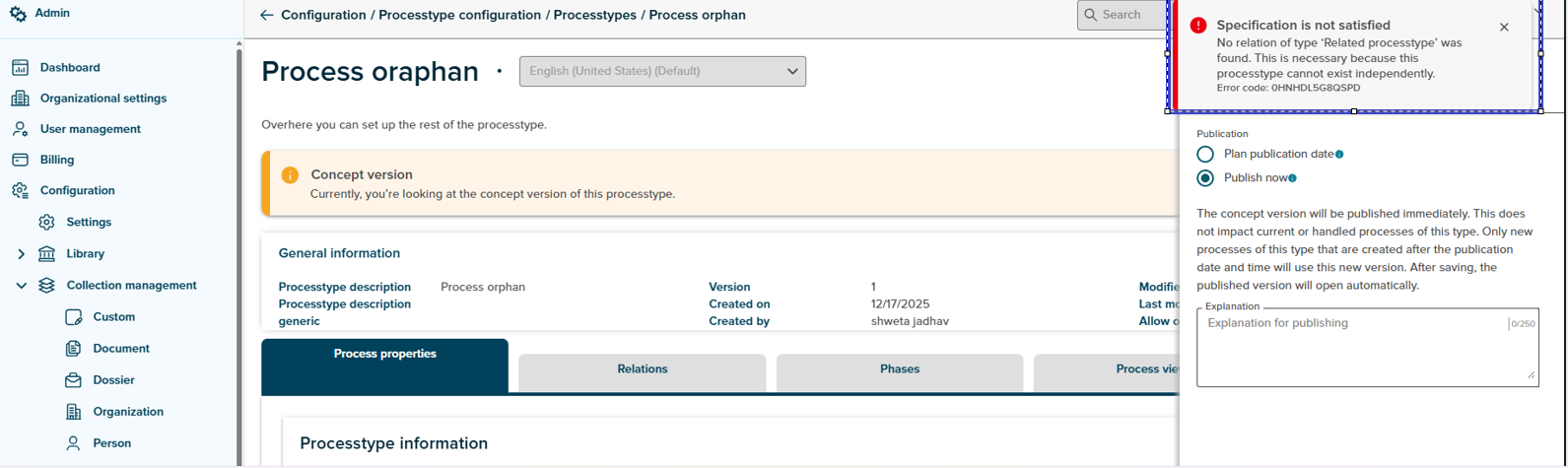
- While creating a new process type the user will have a switch called process cannot be orphaned
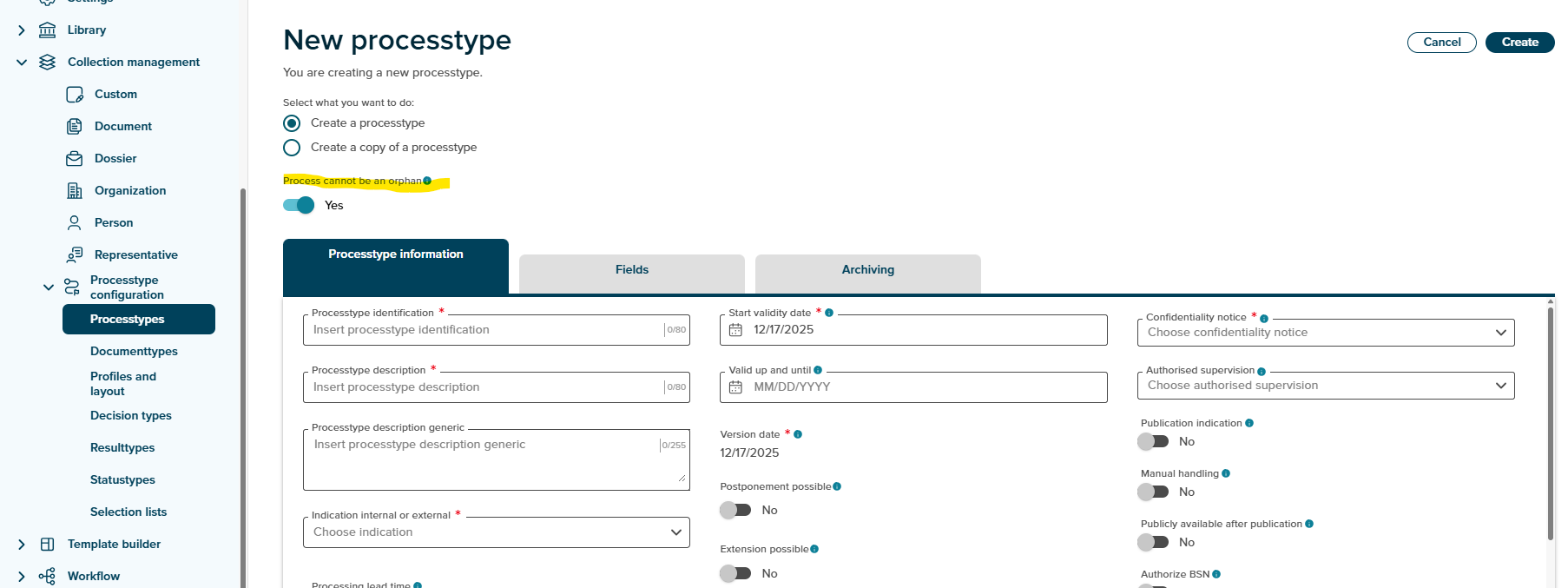
- this switch will by default be set to No allowing the process to exist independently
- if switched to yes the process must have a related process
- Admin has an option to set a process type as dependent (non-orphan)
- A toggle (default null) determines if a process type must have a relation
- If set to yes, this process type cannot be published without a related process type linked